
Your first Focus Haven
A quieter
weekday morning.
Start with one work or study block, not your whole day. This example keeps a few essentials visible from 9:00 to 11:00, Monday to Friday.
Before you begin
Install Haven from Google Play, then follow the setup prompt to make Haven your default home app. Choose the apps you’ll need during your block before hiding anything: for example, Phone, Messages, Calendar, your notes app, and an authenticator. Swap these for your own essentials. One Haven with up to five selected apps fits the free tier.
Prefer a place-based routine? Hide distracting apps at home with a Location Haven. The free version supports one Haven; the location guide explains your options if you already use a Time Haven.
Get Haven on Google Play-
Choose Time Haven
On the Create New Haven screen, tap Time Haven. Already on your home screen? Open Haven’s Settings using the gear icon, then tap + beside Havens. If you moved the shortcut into your app list, look for Settings (Haven).
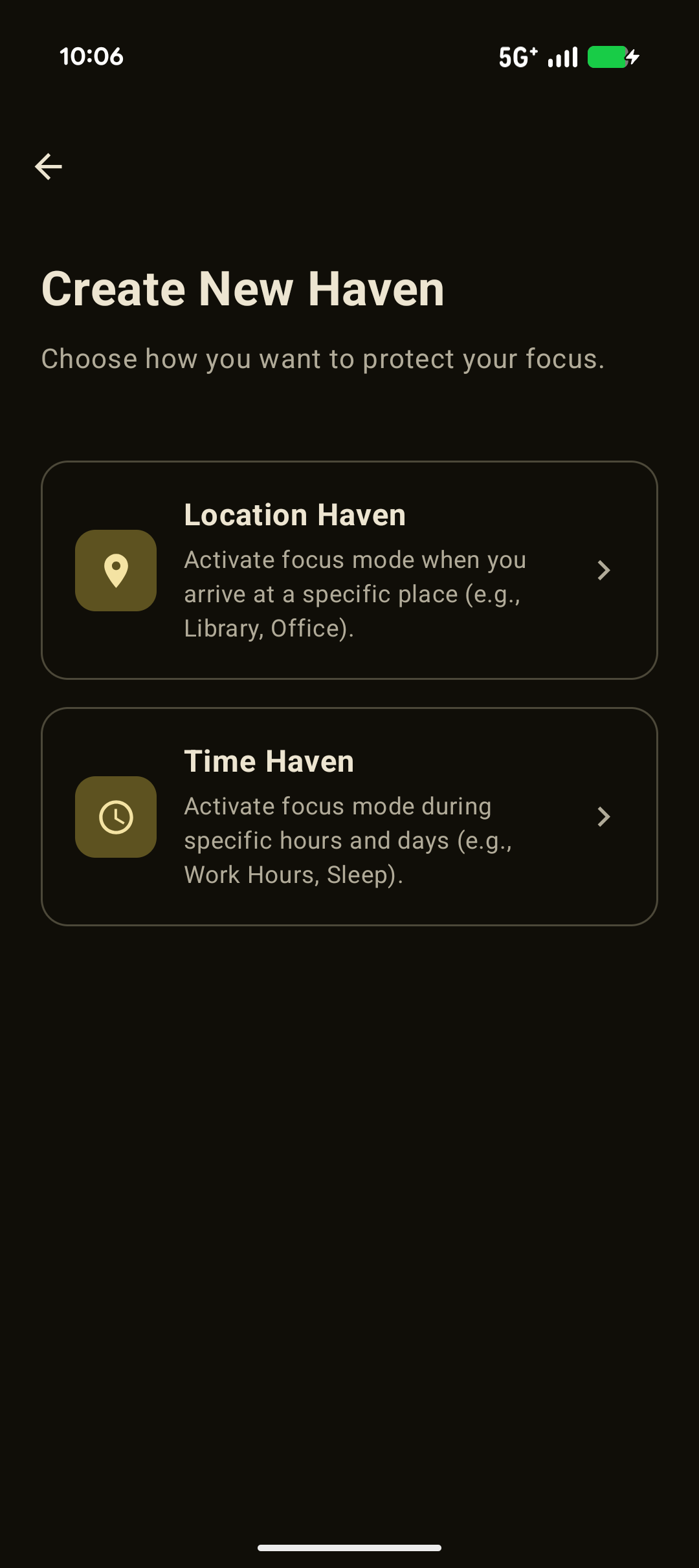
Choose Time Haven for a recurring work or study window. -
Set one weekday window
Enter “Morning focus” under Haven Name. In Schedule, keep All day off. Set Starts to 09:00 and Ends to 11:00. Select Mon, Tue, Wed, Thu and Fri; leave Sat and Sun unselected. Tap Next.
-
Keep your essentials visible
Under App behavior, choose Show only selected. Tap the apps you want available in Haven during this window; use Search apps to find them. Check that your communication and work essentials are included, then tap Create Haven.
-
Know what changes
During this window, apps you didn’t select are hidden from Haven’s launcher app list and its search results. They remain installed. Outside the window, this Haven stops filtering your list. Other Havens or apps you hid separately can still affect what appears.
If you save during the scheduled window, the Haven can take effect immediately. If you save outside it, your list won’t change yet.
Need to turn it off?
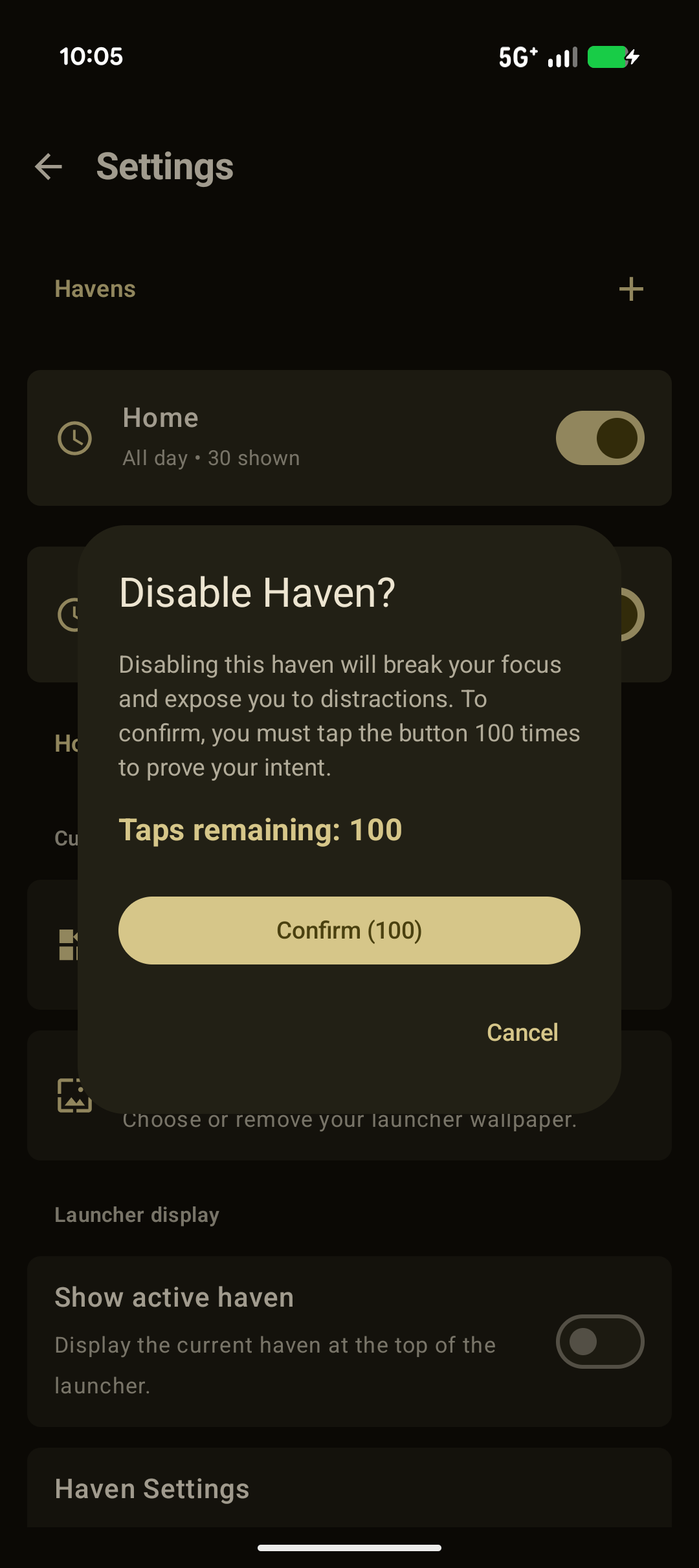
Open Haven’s Settings and find Morning focus under Havens. Turn its switch off. The Disable Haven? dialog starts at Taps remaining: 100. Tap the Confirm button 100 times to disable the Haven; Cancel leaves it enabled.
Once it’s disabled, apps hidden only by this Haven return to your launcher list. The switch stays off until you turn it back on, so re-enable it when you want the weekday schedule to run again.
One block is a good start
Keep your first setup simple
Try one scheduled block before adding more. Widgets are optional: Haven supports compatible Android widgets from apps installed on your phone. You don’t need widgets or a custom wallpaper for this setup; custom wallpaper is a Premium feature.
Get Haven on Google Play